Ubuntu / Linux news and application reviews.

Rhythmbox Confirmed As Default Music Player In Ubuntu 12.04 Precise Pangolin, Jupiter Might Be Included Too


In an Ubuntu-Desktop mailing list message, Jason Warner (Ubuntu Desktop Manager) has confirmed that Rhythmbox will be the default music player in Ubuntu 12.04 Precise Pangolin, replacing Banshee:

Rhythmbox Might Replace Banshee In Ubuntu 12.04 Precise Pangolin, More News

Pangolin

The Ubuntu Developer Summit has started this week and there were two very interesting sessions today: GNOME version and default applications in Ubuntu 12.04 Precise Pangolin.

Banshee Is Not Replacing Rhythmbox In Linux Mint 11

Banshee

Clement Lefebvre, the Linux Mint founder, recently talked to Muktware about Banshee - which has replaced Rhythmbox in the recent Ubuntu 11.04 development builds -, and Mono. Banshee is an amazing application but it uses Mono which many consider risky because Microsoft could one day assert its patents against all the free applications that use Mono.

While Clement says he doesn't consider Mono a thread, it looks like Rhythmbox will stay as default in Linux Mint:

Rhythmbox is our default player and we're quite happy with it. If Ubuntu switches to Banshee, we'll of course give it a close look and assess whether the migration is a good move for us too, but as it is now there isn't any plan to change anything.

As you probably already know by now, Linux Mint will not switch to Unity either, keeping the old "classic" GNOME as default.

Ubuntu 11.04 Updates: Banshee Default, New Grub Background, AppMenu Changes [Screenshots & Video]


An update today finally sets Banshee as the default music player in Ubuntu 11.04 Natty Narwhal. Since Banshee is now default, it has replaced Rhythmbox in the Ubuntu Sound Menu:

News On The Default Applications In Ubuntu 11.04 Natty Narwhal [Updated]

Today is the last UDS-N day and a session about the default application selection in the upcoming Ubuntu 11.04 Natty Narwhal is ongoing. Here's what has been discussed:

Install Banshee 1.8.0 (Stable) In Ubuntu [PPA]

Banshee 1.8.0

Banshee 1.8.0 (stable) has been released yesterday. There are many new features and improvements since the last stable version: Amazon MP3 Store and Download plugins, MPRIS v2 support (it should now be integrated into the Ubuntu 10.10 Sound Menu), Miro Podcast Directory which allows you to stream and subscribe to podcasts, Bulk Metadata Fixup Extension, improved iPhone, iTouch, iPad, and iPod support, improved audiobook support and a lot of other improvements. A complete list can be found @ Banshee release announcement.

Banshee Is Under Evaluation For Becoming A Default Application In Ubuntu Netbook Edition 10.10

banshee 1.6.0 screenshot


When we told you about some discussions on changing some default application in Ubuntu Netbook Edition 10.10, Banshee was only being discussed. But today the blueprint for UNE default app selection changed and it now confirms Banshee as being evaluated for becoming default in Ubuntu Netbook Edition 10.10. Of course, this doesn't confirm Banshee as default yet, but it does mean that there are some chances to see it in UNE 10.10 as the "unified media player" we were talking about.

To be able to get included in Ubuntu Netbook Edition 10.10, Banshee still needs some tweaks. It is even considered to use Meego Banshee interface instead of the default Banshee.


Fix Banshee iPod Sync (Podsleuth) In Ubuntu 10.04 Lucid Lynx

bansheeThis post is thanks to Ricardo Ferreira who sent us the tip (actually most of the post is written by him).


iPod sync with Banshee is broken in Ubuntu 10.04 Lucid Lynx since HAL is now D-Bus activated and does not have an init script. This bug was fixed by Banshee developers last night but isn't yet available anywhere - except GIT.

So here is a short guide to compile the latest podsleuth from Git in Ubuntu 10.04 Lucid Lynx.

Banshee Gets Ubuntu One Music Store Plugin

banshee ubuntu one music store

Every Linux music player can get an Ubuntu One Music Store Plugin, but officially there is one developed for Rhythmbox only.

The first application to get a plugin (besides Rhythmbox, of course) is Banshee. To use it, you must be running Ubuntu Lucid with all packages up to date. Then, run the following command in a terminal to install the plugin:
sudo apt-get install banshee-extension-ubuntuonemusicstore


[via ubuntuone blog]

Banshee 1.6.0 Stable, Released!

banshee 1.6.0 screenshot

After almost a year, a new Banshee stable version has been released: 1.6.0.

Compared to Banshee 1.5.6 (1.6.0 RC2), there aren't many new things. However, Banshee has made an amazing progress since the last stable version and it now has a lot of very interesting features. If you're a constant WebUpd8 reader, you already know most of them since we've covered almost every release of Banshee until 1.6.0.

Banshee 1.5.6 (1.6 RC2) Released

banshee 1.5.5

Banshee 1.5.6 is now available for download, this being just a bug-fix release. A list of fixed bugs can be found HERE.

Banshee 1.5.6 (1.6 RC2) is the last release before 1.6.0 stable which is due March 31, 2010.

Ubuntu installation instructions can be found HERE. For other Linux distributions, see the Banshee download page.

Banshee 1.5.5 Released With Grid View, YouTube Plugin And Gapless Playback

banshee 1.5.5

Banshee 1.5.5 was released just a few hours ago. Like we told you a few days ago, Banshee 1.5.5 (aka 1.6 RC1) got a very nice new YouTube extension but the new version also brings some other new features like Grid View and Gapeless Playback:

Banshee 1.5.5 was just released, including gapless playback, a grid album browser, and a YouTube extension! It contains lots of good bug fixes as well - those of you burned by the 1.5.4 SQL crash will be pleased with the additional QA given to this release.


Banshee Telepathy Extension Allows You To Stream And Share Music With Your Jabber (Including Gtalk) Empathy Contacts

banshee telepathy extension

Speaking of Banshee extensions and Jabber, I've recently came across a very interesting Banshee extension which I'm sure many of you will find to be useful.

The extension is called Banshee Telepathy Extension and you can use it to share or stream music through Empathy instant messaging client with your contacts (Jabber (including GTalk) only) through a p2p protocol.


Banshee To Add A New YouTube Related Videos Plugin

Gnomeuser @ubuntuforums reports that Banshee just added a new Youtube plugin to GIT that allows showing related Youtube videos in the context pane.

I for one didn't get a chance to play with this new plugin as GIT is blocked where I work, but it should be available soon in the Banshee daily PPA.

This makes the future development of Banshee (1.5.5) - a music player written in MONO - which is supposed to be released tomorrow even more interesting.

Banshee 1.6.0, the stable release should be out on March 31.

Banshee Media Player 1.5.4 Has Been Released

Image and video hosting by TinyPic
(image credits: Gabriel Burt, as Banshee 1.5.4 is not yet available in the PPA)


Banshee 1.5.4 has just been released and the new version features the release of Banshee Community Extensions as well as support for Nokia N900 phones and more.


The Banshee Community Extensions include Alarm Clock, Lyrics, Mirage (which calculates the acoustical similarity between songs) and several other extension. The most interesting is the Mirage extension which doesn't use the Automatic Playlist Generator anymore, and instead it is now integrated into the playback controller either by adding shuffle-by-similar or fill-by-similar:

Reviews Of iPhone/iPod Synchronizing Applications For Linux

All of these require a working setup with ifuse, gvfs, libimobiledevice (aka libiphone) etc as per our previous article. In today's article, StoneCut reviews GTKpod, Rhythmbox, Banshee and Songbird and their current status regarding iPhone/iPod syncing.


Banshee Grid View Almost Ready

banshee grid view

Aaron Bockover, the creator and maintainer of the Banshee project has announced a new grid layout mode for the album browser in Banshee. The Grid View is not finished yet, as there are still a few quirks to work out and some more polish, but this is a big step towards a friendlier way of displaying your media collection.

Banshee 1.5.1 aka 1.6 Beta 2 Released

Banshee 1.5.1 (aka 1.6 Beta 2) has been released, bringing important changes, such as an Auto DJ mode, three new shuffle modes, support for WebOS devices (like Palm) and support for the Samsung Galaxy Android phones.

banshee 1.5.1 shuffle

Other changes:

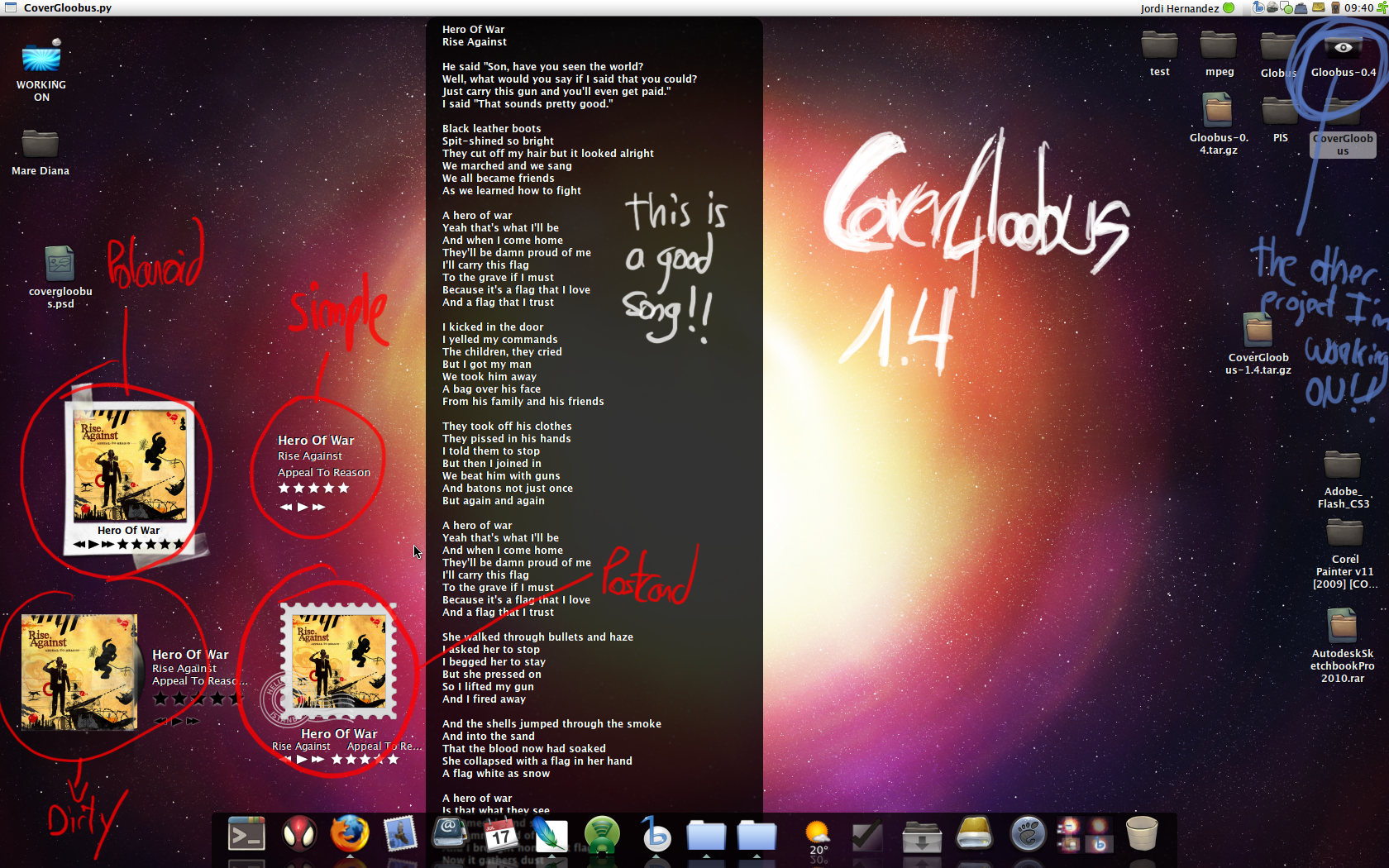
CoverGloobus Displays Cover Art, Lyrics And More On Your Desktop [Linux]

covergloobus

[Linux] From the same author as Gloobus, the amazing files preview applications which we recently covered, comes yet another great application: CoverGloobus, which is an audio player controller that sits on your desktop and can display the album cover, lyrics, etc. (similar to Rhythmbox Cover Art Plug-in).

CoverGloobus supports the following audio players: Banshee, Rhythmbox, Listen and Songbird.

You can also use it with Exaile, by downloading this file, extract it to the Players folder in the CoverGloobus directory and then add:
from Exaile import *
to CoverGloobus.py, on line 49 (just use gedit and you will easly see which that line is, because the lines are numbered).

CoverGloobus features:

-audio player controls
-album covers are automatically downloaded and displayed
-middle click CoverGloobus to display the lyrics for current playing song
-ratings system
-multiple skins

Use Gnome-Do To Control Rhythmbox, Banshee, Exaile and XMMS2 [Full Howto]

gnome do rhythmbox

This tutorial will explain how to use Gnome-Do to control Rhythmbox, Banshee, Exaile and XMMS2. Before we get started, I suggest you watch this video I just recorded to see how Gnome Do can interact with these music players:


Why use Gnome-Do to Control your music player?


GNOME Do allows you to quickly search for many items present on your desktop or the web, and perform useful actions on those items. Gnome Do also comes with numerous plugins which includes a plugin to control Rhythmbox, Banshee, one for Exaile and one for XMMS2. Using these plugins you can press Ctrl + Space on your keyboard and then for instance type in an artist name, song name or album, then use the "Tab" button to either play or queue the selected track(s) or albums, increase or decrease the sound level and so on, and you get to do all this without going to your music player GUI, but within Gnome Do.


Installing Gnome Do


If you already have Gnome Do installed, skip this step.

I am only going to tell you how to install it in Ubuntu, for other distros, follow the instractions on the Gnome Do website.

To install Gnome Do in Ubuntu, open a terminal and paste the following command to add the Gnome DO PPA repository:

-For Ubuntu Hardy Heron:
sudo sh -c "echo 'deb http://ppa.launchpad.net/do-core/ppa/ubuntu hardy main' >> /etc/apt/sources.list"

-For Ubuntu Intrepid Ibex:
sudo sh -c "echo 'deb http://ppa.launchpad.net/do-core/ppa/ubuntu intrepid main' >> /etc/apt/sources.list"

-For Jaunty Jackalope:
sudo sh -c "echo 'deb http://ppa.launchpad.net/do-core/ppa/ubuntu jaunty main' >> /etc/apt/sources.list"

-For Karmic Koala:
sudo sh -c "echo 'deb http://ppa.launchpad.net/do-core/ppa/ubuntu karmic main' >> /etc/apt/sources.list"

Then, for any of the above Ubuntu versions, paste this in a terminal to import the PPA key:
sudo apt-key adv --keyserver keyserver.ubuntu.com --recv-keys 77558DD0

And then to install Gnome Do:
sudo apt-get update && sudo apt-get install gnome-do


Using Gnome Do to control Rhythmbox


The first thing you need to do is go to the Gnome Do preferences and under the "Plugins" tab (official plugins), check "Rhythmbox":

gnome-do plugins

Then, launch GNOME Do and type the name of an artist in your music collection. Once the artist you want is shown press the right arrow key to view a list of albums beneath that artist. You can select albums by using the up and down keys. This list is also searchable (so for example if I had searched for Iron Maiden and had a list of albums, typing The Trooper at this point would select The Trooper). To view tracks in the selected album press the right arrow key again.

At any point pressing enter will play the selection in Rhythmbox. So, if I type Iron Maiden and press enter all Iron Maiden songs are enqueued, if I go across to The Trooper and press enter...(you can see where this is going). Clever, isn't it?

Now, what about queuing songs up? The procedure is basically the same but we need to change the action from 'Play' to 'Queue'. Once you have selected the music you want (The Trooper yet again) press tab to change focus to the Action box and press the down arrow to change the Action.

To queue multiple songs, press the comma (,) key when on a song, move to another song, press comma on your keyboard again and so on, then press "Tab", then the down arrow and select "Queue" and all the selected tracks will be added to the queue in Rhythmbox.

We can perform other music related actions too by typing them! For example...type Pause to... pause! Others include:

  • Play
  • Volume up
  • Volume down
  • Show current track
  • Mute
  • and finally Unmute
Unfortunately, if you have your music library in more than one location and have imported it into Rhythmbox, that part of your music collection won't be seen by Gnome Do. But there is a way around this. What we need to do is add multiple locations to your Rhythmbox library. To do this, press ALT + F2 on your keyboard and enter: gconf-editor and navigate to: apps > Rhythmbox. You will there see key which is named "library_locations". Double click it, and then click "Add" to add all your music files locations:

gconf-editor rhythmbox

To add a location, add "file://" in front of it. For instance, to add your /home/music folder, you need to enter: file:///home/music

Then open Rhythmbox, go to Edit > Preferences, on the "Music" tab, and check "Watch my library for new files". Now wait for the library to be scanned and then you can start using Gnome-Do to control Rhythmbox.


Using Gnome Do to control Banshee


The first thing you need to do is go to the Gnome Do preferences and under the "Plugins" tab (official plugins), check "Banshee Media Player":

gnome do plugins banshee

You can control Banshee in the same way as Rhythmbox (read above) but you will only see the files from your music library in Gnome Do, the imported music will not show up. Also, there is no workaround like with Rhythmbox to use multiple library locations by tweaking gconf and also it doesn't work by using symbolic links either so if you want the whole functionality, go with Rhythmbox.

One more note: I have tried Gnome Do with the latest Banshee 1.5.0 (aka 1.6.1 Beta) from the Banshee experimental PPA and it does not work.


Using Gnome Do to control XMMS2


The first thing you need to do is go to the Gnome Do preferences and under the "Plugins" tab (Community plugins), check "XMMS2":

gnome do xmms2


Built off the original Rhythmbox plugin, most of the functionality is the same.

There are several basic commands to control your xmms2 playback directly. play plays, pause pauses, stop stops. There are also previous and next commands, as well as volume up, volume down and mute. All commands can be seen under xmms2 Music, by selecting in in Do and pressing right, the same way folders are browsed into.

One last simple command, Queue All, queues your entire music library in the Default playlist. This operation is fast (due to the nature of xmms2), but be careful, as viewing your default playlist in Do can then take a very long time, depending on the size of your library.

You can browse your xmms2 library through Do, and play or queue artists, albums, or songs. This can be done 2 ways. The first is to simply search for an artist or album by name, then browse deeper into it by pressing right, just like browsing folders. The second is to go in through browse artists or browse albums. This will give you a list of just artists or just albums respectively. You can right arrow into artists to get their albums, and right arrow into albums to get their songs. All 3 levels can be played and queued.

One key difference between the Rhythmbox plugin and this one is that every artist has a Songs album added to their album list. This album contains all their songs, so if you want to queue several songs from different albums (To queue multiple songs, press the comma (,) key when on a song, move to another song, press comma on your keyboard again and so on, then press "Tab", then the down arrow and select "Queue" and all the selected tracks will be added to the queue in XMMS2.), or if you want to just see all the songs by an artist, this will allow you to. Note, the Songs album is not available for queueing or playing, because it doesn't actually exist. If you want to queue or play all songs by an artist, simply queue or play the artist.

The XMMS2 plugin also supports playlists! Playlists are indexed as items by Do, and can be browsed into using right, just like directories or artists. Browsing into a playlist will give you (surprise) a list of songs in that playlist. They should be in order (although they won't necessarily be), and you can select songs from the playlist to queue or play just like with songs from an album.

In addition, you can perform many actions on the playlists themselves. Play, Clear Playlist, Shuffle Playlist, Load Playlist, Remove Playlist, Repeat, and Queue pretty much explain themselves.

One last playlist related action is Create Playlist, which pretty much explains itself, and allows you to name your playlist.


Using Gnome Do to control Exaile


The first thing you need to do is go to the Gnome Do preferences and under the "Plugins" tab (Community plugins), check "Exaile". The functionality is the same as for Rhythmbox so read about it above ("Using Gnome Do to control Rhythmbox). One thing though: the queue functionality has not been implemented in the Exaile plugin for Gnome Do, so for now you can only play tracks.

If you have something to add or point out something wrong in this post, feel free to comment!