Ubuntu / Linux news and application reviews.

5 Beautiful Plank Themes

Plank is new dock for Linux written in Vala, developed by the Docky team.


1. Glass Pill:

Glass Pill Plank theme


Download

Install Docky Stacks From An Ubuntu PPA

Docky Stacks screenshot

"Stacks" is a really cool way of browsing files from Docky. This feature is available in a separate Docky branch but luckily Ricotz has packaged and uploaded it to his Docky PPA (available for Ubuntu 10.10 Maverick Meerkat and 11.04 Natty Narwhal).


Cardapio Menu Update Brings Docky Helper, Minimode

Cardapio, one of the best main menu applets available for Linux has just been updated, bringing some very cool new features:


Cardapio minimode
(Cardapio Gnome panel applet - minimode)


Minimode is a new option to reduce the size of the Cardapio main window which saves a lot of space, very useful for netbooks (but not only).


Cardapio Docky
(Cardapio running as a Docky Helper)


Docky Helper: clicking the anchor icon in Docky will open Cardapio.


How To Use Cardapio Menu With Docky And Avant Window Navigator

Cardapio is a main menu replacement for GNOME which comes with a lot of useful features and plugins. It can run as a GNOME panel applet or as a stand-alone application.

GnoMenu 2.9 Released With Docky Support And A New Theme Especially Designed For Docks

gnomenu docky

GnoMenu is an eye-candy GNOME menu with themes support which works with the GNOME Panel, Avant Window Navigator, Cairo Dock, KDE Plasma and starting with the latest 2.9 version: Docky.

GnoMenu 2.9 also got a new theme, especially designed for docks (which you can see in the image above).

Docky Will Finally Get A Main Menu: GnoMenu

GnoMenu 2.9 will run in Docky:

docky gnomenu

There is no more info available for now. But finally, Docky will have a main menu!

Improved Docky Zeitgeist Integration Makes You Forget You Have A File Manager

docky zeitgeist integration

Sure, Docky already had Zeitgeist integration but starting yesterday, the Zeitgeit integration got more cool then ever: the jump lists provide a list with "Most Used Items" which includes items from the last 2 weeks, and also "Other Recently Items".

Poll Results: Best Linux Dock

So, what dock do the WebUpd8 readers consider to be the best? Read on to find out...


How To Get A 3 Dimensional (3D) Docky [Quick Linux Tip]

docky 3d

Firsly, if you do not have Docky installed, you will find installation instructions for Ubuntu Karmic HERE.

Then, to enable the ThreeDimensional (3D) Docky mode, simply paste this in a terminal:
gconftool-2 -t bool -s /apps/docky-2/Docky/Interface/DockPreferences/Dock1/ThreeDimensional true


Then close Docky (if opened) and run it again. If you have more than one Docky, replace "Dock1" in the command above with the dock you want to enable 3D mode for.

To revert this change, simply run the command again, with "false" instead of "true" at the end.

All the credits go to Whise for finding this (thank you!).

Docky Official Development PPA [Ubuntu]

docky

As you probably know, Docky will not be a part of Gnome Do anymore. There was a PPA to install the development version of Docky in Ubuntu, but the Docky package has been removed. Fortunately, there now is an official Docky development PPA.

Install Docky And Update Gnome Shell From A Repository (Launchpad PPA) [Ubuntu Karmic]

I will firstly post instructions on how to add the PPA repository, and then explain what's up Docky and Gnome Shell.

The following commands (must be run in a terminal) will add the Karmic Testing PPA by Rico Tzschichholz. Obviously, this will only work for Ubuntu Karmic Koala:

sudo add-apt-repository ppa:ricotz/testing


Then:
sudo apt-get update


That's it. This repository contains the following packages:

-Docky (version 2.0~bzr315-0 at the time of writing this post) - the dock bar part of Gnome Do (read on!)

-Gnome Shell (v. gnome-shell 2.28.1~42-g17c8) with Mutter (v. 2.28.0)

-Clutter (v. 1.0.8) - a highly promising rich graphical interface library designed by OpenedHand that is built with OpenGL and provides a GObject-based API. Clutter is still fairly new but is generating considerable excitement in the GNOME development community because it supplies a lot of much-needed graphics functionality that simply isn't supported natively by GTK+.

-InkScape (v. 0.47 Beta 4 pre) - an Open Source vector graphics editor, with capabilities similar to Illustrator, CorelDraw, or Xara X, using the W3C standard Scalable Vector Graphics (SVG) file format. This repository seems to have the most up to date version of InkScape Ubuntu builds (we've previously written on installing InkScape 0.47 Beta 3 pre, but that repository hasn't been updated. Still, if you don't use Karmic, use that repository for installing InkScape 0.47 beta 3 pre).

-A few other packages. Check them out, HERE.

Separate Docky installation


docky

'Show Desktop' Applet For Docky (Gnome-Do)

docky show desktop

Update: Docky now has it's own "Show Desktop" applet, but Docky and Gnome DO are separate applications for a while and a lot of people are still using the old Docky integrated into Gnome DO, so this should still be useful.

I know a lot of you are using Gnome Do for quite some time, but I've only recently switched to it. One of the most annoying things when running it in Docky mode (Dock bar) is that it doesn't have to many applets, and I can live with that but now without a "Show Desktop" shortcut.

Yes, you can use a keyboard shortcut for showing the desktop, but I wanted this in Gnome Do / Docky and managed to create an applet (actually a script) to use in Docky.

The main challenge was to find a way to show / hide the windows from within a terminal. Then I found wmctrl, a tool which can hide / restore your windows from the command line.

The following instructions are for Ubuntu / Gnome, but should work for other Linux distributions / desktop environments too.

Docky: Move it To the Top of the Desktop, Add a MacOSX-like "Genie" Effect and Customize the Icons Zoom


Docky, the new GNOME Do interface in the form of a dock, is getting more and more used and causes sensation among GNU / Linux users.

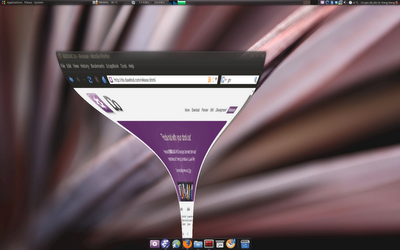
In this how-to, I will tell you how to customize the zoom effect and behavior of Docky icons. Furthermore, you will be able to change the orientation of the bar so that you can move it on top of the screen, and how to get the "Genie" effect like on Mac OSX when minimizing windows, by using a modification of the Magic Lamp Compiz animation effect.

By using Advanced Configuration Editor in Gnome, you have access to some Docky properties not listed in the preferences, like the option to change Docky's position on the desktop or change maximize effect.

Move Docky to the top of the Desktop


photobucket


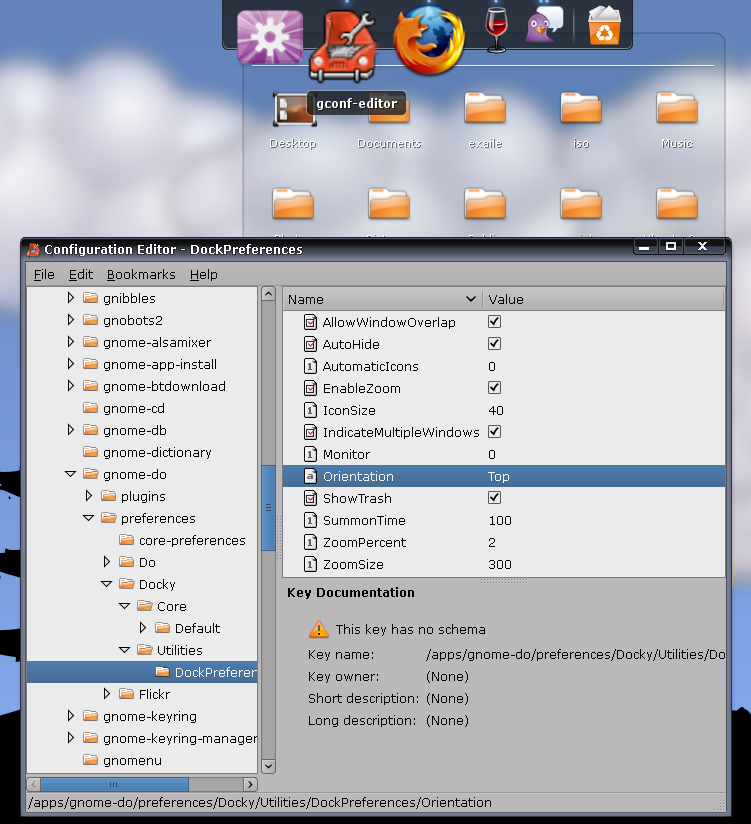
Press Alt+F2, enter: gconf-editor and in this configuration editor, navigate to "Apps -> Gnome Do -> Preferences -> Docky -> Utilities -> Dock Preferences". On the right side there are some properties with their corresponding values, including the position of the dock which you can change from "Bottom" to "Top" to move Docky to the upper part of the desktop. Don't try "left" or "right" as it will not work, but surely it's a a matter of time before this will be incorporated into future versions.

Any changes made do not apply until you restart GNOME Do.

Customizing the zoom


Using gconf-editor you can also customize the zoom used when hovering the mouse over the icons:

* Zoom Percent: The percentage the icons will be magnified when the mouse hovers over them. If set to 1 there will be no zoom, and 3 is quite exaggerated. In my case, for example, I have a value of 1.5 for the zoom with the icons of 25 pixels.

* Zoom size: value in pixels of the distance over which the zoom effect will take place, lets you enter a value to define how many icons are affected by the expansion when the mouse is placed over one of them.

MacOSX-like Genie Minimize Effect


photobucket


Update: I made a video with the "Genie" effect:


To achieve this Mac-like effect you don't have to changes any Docky settings, but Compiz's. Before we get started, make sure you have CCSM installed (Compiz-Config Settings Manager). If you don't,:
sudo apt-get install compizconfig-settings-manager

“Genie” is protected by patent (of Mac) and Compiz decided to disable the option to set “max wave size” of its “Magic Lamp” effect to 0 so that you can not mimic the “Genie” effect with it. But we can still make it work, so read on.

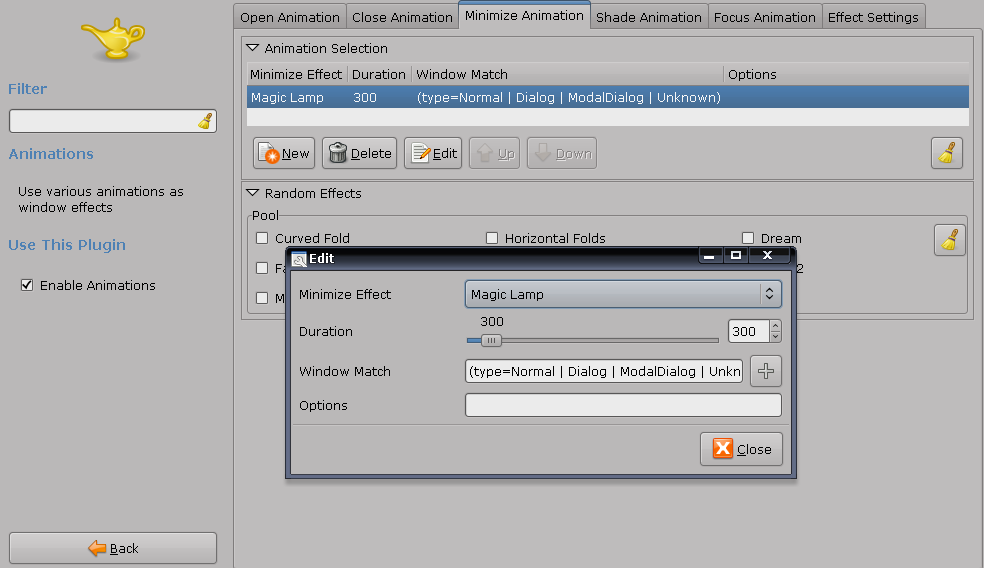
Compiz lets you choose what animation is applied to each type of window action (minimize, maximize, focus ...) and how long the effect should take. So to get the Genie minimize effect, open CompizConfig Settings Manager (System > Prefereces), and under "Effects" check "Animations". Now click on "Animations", go to "Minimize Animation" tab, double click the existing effect and replace it with "Magic Lamp":

photobucket

For the next step, we're going to need a Hex editor. If you don't have one installed:
sudo apt-get install ghex

If using Compiz currently, use Alt+F2 and Type:
metacity --replace

so you don't get any weird behavior until we finish with this.

Now, using ghex we need to edit a Compiz plugin library, so type this in a terminal:
1.
sudo ghex2 /usr/lib/compiz/libanimation.so
a.) Go to Edit->Find, click on the right hand box
b.) Type: magic_lamp_max and click find
c.) Change 3 from 3 to 0
d.) Save, Close

2.
sudo ghex2 /usr/lib/compiz/libanimation.a
a.) Go to Edit->Find, click on the right hand box
b.) Type: magic_lamp_max and click find
c.) Change 3 from 3 to 0
d.) Save, Close

3. sudo gedit /usr/share/compiz/animation.xml

a.) Go to Search->Find
b.) Type: magic_lamp_max and click find, scroll down past the languages
c.) Change 3 from 3 to 0
d.) Save, Close

Restart, log out and back in, or Alt+F2 and Type: Compiz --replace. Any of these should work.

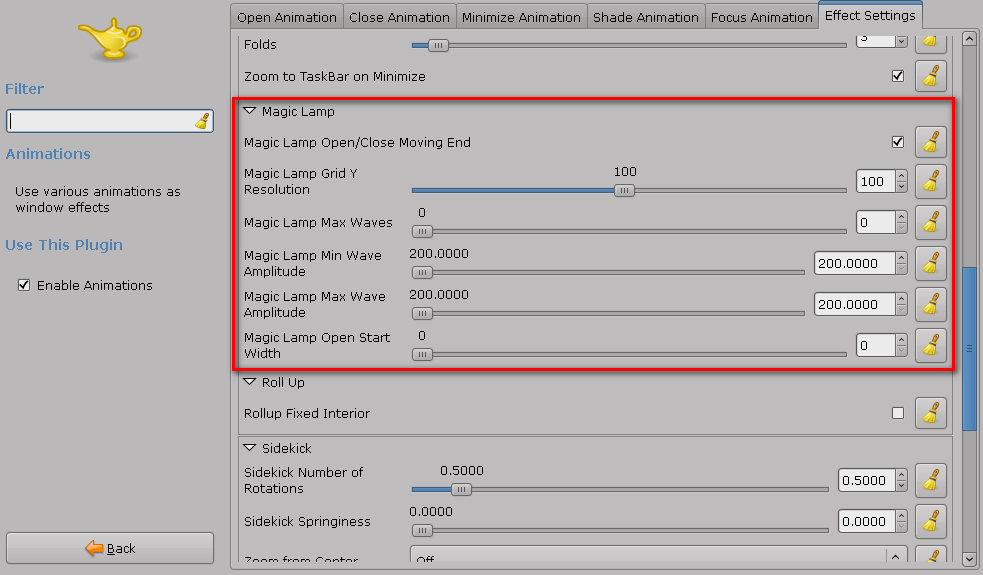
The next step is to use CompizConfig to change the Magic Lamp Settings like in the red rectangle in the image below (System > Preferences > CompizConfig Settings Manager: Animations > the last tab called "Effects Settings"):

photobucket

That's it. Enjoy your new customized as hell Docky :D

Credits:
GenBeta for most of this tutorial
Darin user @ ubuntuforums.org
pengdeng.com for the image (i couldn't make the damn print screen, it was just too fast :P) and some other info.
onoametal - that's where i found a link to the GenBeta article - Up The Irons!