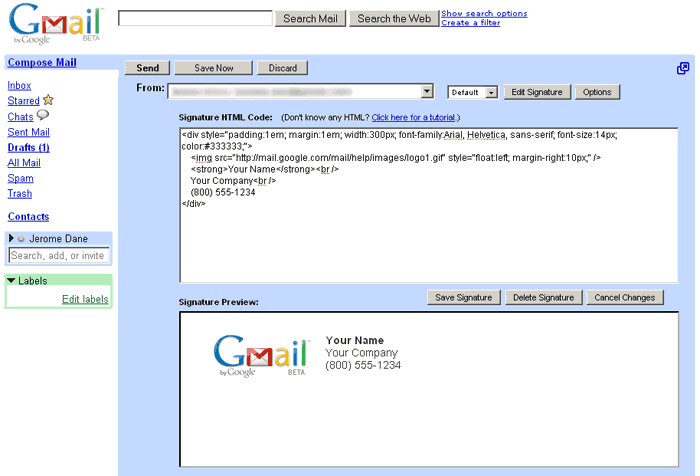
You can have multiple Gmail signatures in a variety of ways. Please note that some examples below work for any web email.
1. Through a bookmarklet:
Simply go to
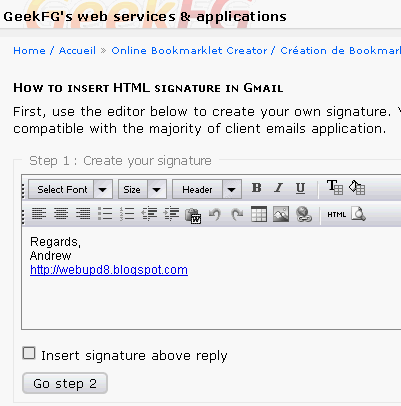
this page, create your signatures (they can be HTML too), then you will be given a link which you can drag to your bookmarks toolbar and then when writing an email, simply click on a bookmarklet and your signature is inserted in the email body.
2. Using Gmail Labs canned responses: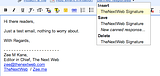
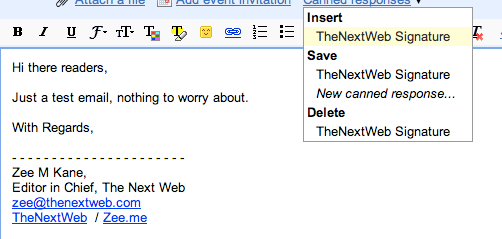
a. Enable Canned Responses in “Labs” in your gmail account.
b. Write out your email signature into your email as if you were writing a normal email.
c. Next save the signature as a canned response under any name, something like “My Main Signature” for example. (repeat this step for all your various signatures)
d. From now on, you can write emails as your normally would and once you’ve reached the foot of your email and ready to insert your signature - simply click the “Canned Responses” menu and select the appropriate signature.
3. Using a text complete Firefox addon: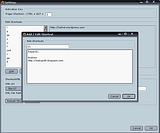 Previously mentioned
 Firefox addon
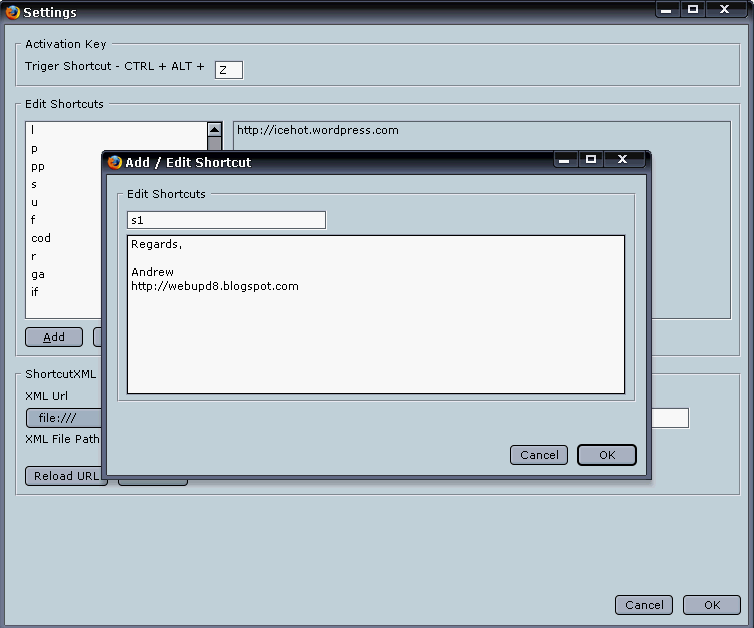
TextComplete or any other similar addon can fill in an email signature in any email client by typing just 1-2 letters. For instance we can set 3 signatures: "s1", "s2" and "s3" and by typing either of those shortcodes and hitting ctrl + alt + Z, the text field is auto filled with our signature.
4. Using Firefox addon Blank Canvas Gmail:
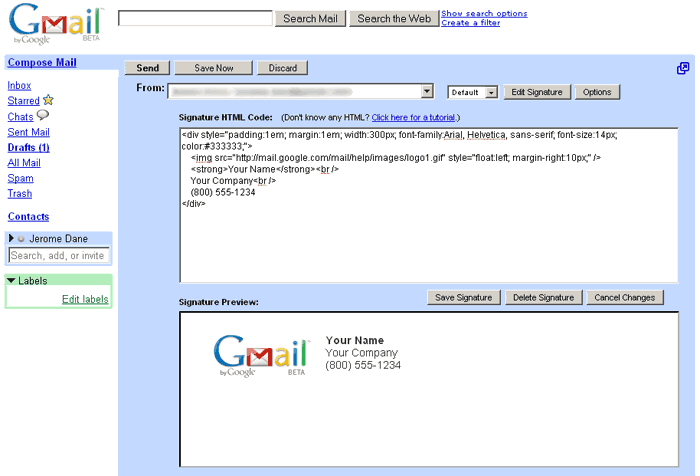
Blank Canvas Gmail Signatures automatically inserts HTML signatures into your Gmail messages based on which address you are sending from. Supports up to four signatures for each address you have set up. Works for Compose Message and Reply/Forward.
5. Using Firefox addon WiseStamp
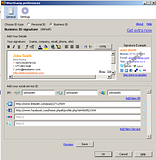
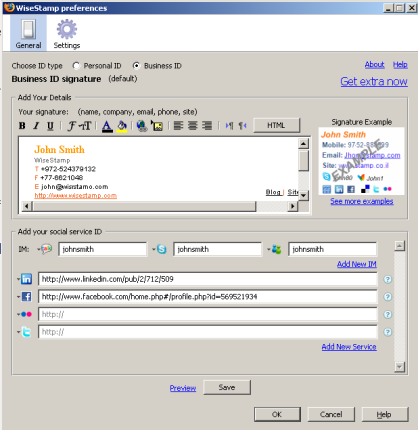
WiseStamp is an add-on that is still in beta. This Firefox extension enables you to create personalized multiple signatures for any web based email service.
With its rich text editor you can set up personal and business signatures (text or HTML). You can also include your IM identities and social profiles. The WiseStamp interface automatically adds the signature at the end of your email. Of course, it can also be added manually at a choice mouse cursor location and if you don’t want to sign off, just switch it off.
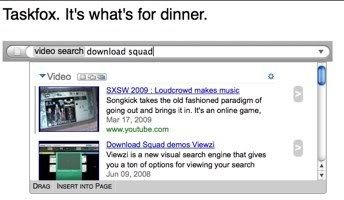
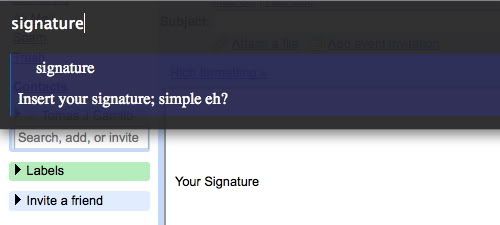
6. Using Ubiquity Firefox addon:
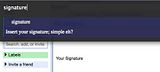
Go to command editor and paste this:
CmdUtils.CreateCommand({
name: "signature simple",
preview: "Insert your simple signature; simple eh?",
execute: function(){
CmdUtils.setSelection( "Your Signature" );
}
})

CmdUtils.CreateCommand({
name: "signature full",
preview: "Insert your full signature.",
execute: function(){
CmdUtils.setSelection( "Your Signature\n\nhttp://yourwebsite.com\nYour Favorite Quote\nEt Cetera" );
}
})
replacing Your Signature\n\nhttp://yourwebsite.com\nYour Favorite Quote\nEt Cetera with your signature. Please note that "\n" adds another line so use it so you can have multiple lines in your signature. And of course, replace signature full and signature simple with the code you want to type so that your signatures gets inserted. Add as many as you want (there are only 2 in my example).