Ubuntu / Linux news and application reviews.

TRIM Enabled By Default For SSDs On Ubuntu 14.04 Trusty Tahr

Intel SSD

SSDs are finally trimmed out of the box starting with Ubuntu 14.04 LTS Trusty Tahr.

Enable TRIM On SSD (Solid-State Drives) In Ubuntu For Better Performance

kingston ssd 120gb v200


TRIM allows the OS to "inform a solid-state drive (SSD) which blocks of data are no longer considered in use and can be wiped internally". Without using TRIM, the SSD speed decreases after a while so if you have a solid-state drive that supports TRIM, you should enable it so your SSD remains fast over time.

This isn't easy to benchmark because the performance decreases over time so you'd neet to check the SSD speed constantly for a few months to see exactly how the SSD is affected when TRIM is not enabled. But if your SSD read / write speed decreases a lot over time and you haven't enabled TRIM, this may be way.

Some articles mention using online discard - enabling TRIM by adding the "discard" option to /etc/fstab -, but there are many who say this isn't a good idea for most solid-state drives and you'll get a pretty significant performance hit when trying to delete a large number of small files. So below I'll let you know how to use both of these methods: online discard (not recommended) and the recommended way: using fstrim and a cron (anacron) job.

Note: the instructions below have been tested in Ubuntu, but they may (most probably) work with other Linux distributions as well.

Yet Another Window Applet For Gnome [Ubuntu]

WindowApplets

I used some Compiz settings and Namebar to hide the Windows titlebars and display the window title and buttons on the Gnome panel.

ElGandoz suggested (in a comment) an Window applet for Gnome called WindowApplets (actually there are 2 applets) which substitute maximized window title and buttons in a better way than NameBar. If you are worried about the buttons (see the screenshot in the beginning of the post) not fitting your theme: don't worry about it, you can change those.

The difference between Namebar and WindowApplets is that WindowApplets comes with two applets and you can position the window title and minimize, restore and close buttons separately on the Gnome panel. Also, you can set from within WindowApplets options to remove the maximized windows titlebar automatically, you can customize the font size, color and face and many other useful customizations.

Quick Tip For Old Computers: Use Wire Frames To Reduce Dragging Windows Lag [Ubuntu / Gnome]

If you have a really old computer running Ubuntu (w/ Gnome), here is a quick tip to reduce the dragging windows lag.

Gnome renders the window as it moves, which can slow performance down, but it has a built-in method to reduce the demand on system resources this causes.

Compress PNG Files With PNGCrush

pngcrush

The size to which the PNG image above was compressed may not seem like much, but the original image was already compressed. Besides, if you own a website, compressing ALL the images will most definitely make a difference, especially since - as you can see in the picture above - the quality is basically the same to the naked eye.

The tool I used is called Pngcrush, a free and open source optimizer for PNG (Portable Network Graphics) files. It can be run from a commandline in an MSDOS window, or from a UNIX or LINUX commandline. Its main purpose is to reduce the size of the PNG IDAT datastream by trying various compression levels an PNG filter methods. It also can be used to remove unwanted ancillary chunks, or to add certain chunks including gAMA, tRNS, iCCP, and textual chunks.

Use FireTune For Better Firefox Performance

firetune speed up firefoxFireTune is a portable, Windows-only application designed to speed up Firefox. According to your specific computer speed and internet connection speed, FireTune will optimize several internal settings of Firefox for better performance. The whole optimization process is fully automated and does not require any 'geek' knowledge - just make your selection from the available speed configurations and FireTune will do the work. It was developed for an easy and fast optimization of your browsing experience with Firefox and is based on a collection of popular and well working optimization settings used and tested by the experts.

What FireTune does is basically tweaking your ‘about:config’ settings so you don't have to manually alter all those parameters.

Note: Make sure you have made the backup of Firefox configuration before tweaking it with this tool. Backup and Restoration of original configuration can be made from within this tool.

FireTune features:
  • No installation or uninstallation required - download, unzip, execute and you are done
  • Speed improvements according to your computer speed
  • Improves browsing speed according to your internet connection speed
  • Speed improvements for slow, medium and fast computers / connection speeds
  • Enables some hidden tweaks of Firefox for even more browsing speed
  • Includes a configuration backup and restore function
  • Optimizes SSL connection speed
  • Optimizes Firefox memory usage
  • Works with the installable and the portable version of Firefox
  • Multi language user interface: includes language files for more than 30 languages
  • Includes a help file with details on what FireTune exactly does
  • Online update check - notifies you when a new version is available
  • Completely FREE - FireTune is freeware and does not cost a cent!
Download FireTune

Looking for other ways to speed up Firefox? You may want to take a look at these too:

Windows only:
Optimized Firefox 3.5 Windows Builds
Another Solution For Fixing Slow Firefox 3.5 Startup

Linux only:
What Is And How To Install Swiftfox Web Browser in Ubuntu and Other Linux Distributions (Optimized Firefox build for Linux)
Speed up Firefox by mounting the profile in tmpfs (RAM)
Ubuntu: Speed Up Firefox By ~45%
Speed Up Flash and Firefox in Ubuntu Jaunty
Quick Tip: Improve Flash Performance In Full Screen Mode
How To Fix Full-Screen Flash Videos in Linux & Firefox (or Swiftfox)

Any OS:
Fasterfox Lite 3.8.1 - Turbo Charge Your Firefox 3.5
Increase Firefox 3.* Performance by Optimizing the SQLite Databases

Optimize Your Computer's CPU with PRocess Lasso

process lasswo

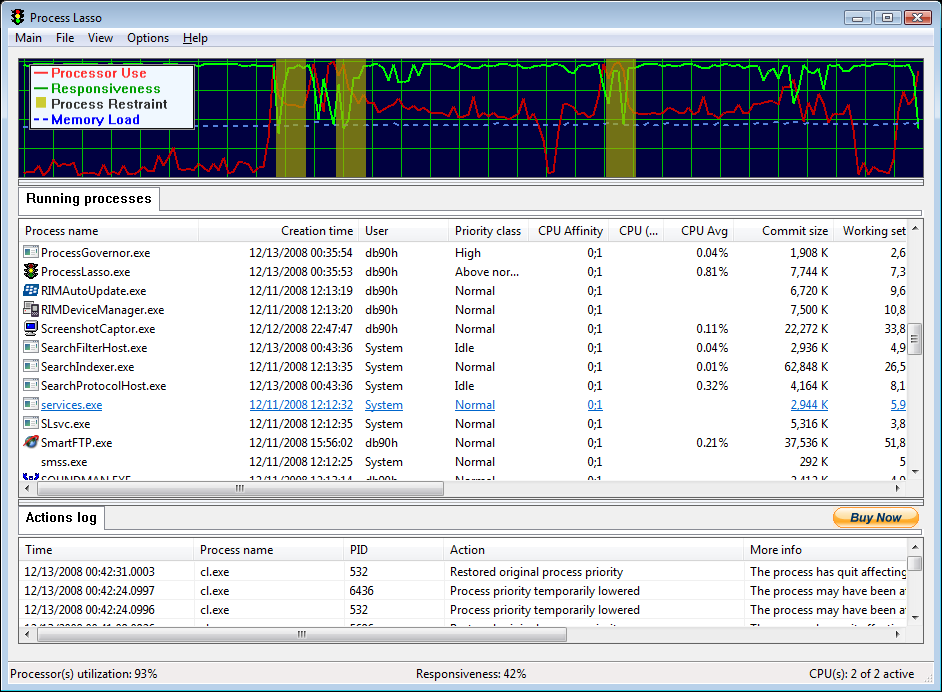
RProcess Lasso is a freeware Windows utility that, amongst other things, will improve your PC's responsiveness and stability. Windows, by design, allows programs to monopolize your CPU without restraint -- leading to freezes and hangs. Process Lasso's ProBalance technology intelligently adjusts the priority of running programs so that badly behaved or overly active processes won't interfere with your ability to use the computer!

Moreover, the graphical interface of the "PRocess Lasso" presents a display and a manual manipulation of running processes. This application is not intended to replace the Task Manager, but has capacity to do so due to its main functions.

Although you can modify the program's settings, is not recommended to do so, because these settings are chosen to obtain an optimal performance.

Process Lasso Features:

# ProBalance dynamic priority optimization
# Default process priorities
# Default process CPU affinities
# Foreground boosting
# Limit allowed program instances
# Disallow programs from running
# Log all programs run
# System responsiveness graph
# Stand-alone core engine
# Available in x86-32 and x86-64 builds
# Highly optimal, extremely low RAM and CPU use

Core Engine Features
* Stand-alone capability
* Only 1-3 MB of RAM used in typical cases
* ProBalance automatically manages process priorities to improve system responsiveness and prevent freezes
* Configure processes to always start at a desired priority and/or CPU affinity
* Auto-terminate undesirable processes
* Limit the number of instances a process can have
* Fine-tune NT scheduler settings with TweakScheduler
* Fine-tune Vista Multimedia Scheduler with VistaMMSC