Ubuntu / Linux news and application reviews.

Translate Any Text You Select On Your Linux Desktop With A Keyboard Shortcut And Notifications

I recently stumbled upon an interesting tiny old script which can translate any text you select. After highlighting the text, be it in a web browser, Libreoffice or PDF document and so on, upon using a keyboard shortcut, its translation is displayed in a desktop notification.

Google Translate notification Linux

Google Translate CLI Lets You Translate Text From The Command Line

Google Translate CLI is a tool that lets you use translate text from the command line using Google Translate.

Google Translate Command Line

TradutorOOoNote: OpenOffice.org Google Translate Plugin

openoffice 3.2 writer

TradutorOOoNote is an OpenOffice.org plugin which translates the selected text to the language you select in the OpenOffice status bar and adds the translation as a note to your document. The translation is made using Google Translate, so all the languages available in the online translate tool are also available in OpenOffice (but obviously, you need an internet connection for the plugin to work).


In Ubuntu, to download and install the plugin you can simply paste the following commands in a terminal:

New Features and a New Look for Google Translate

new google translateGoogle has launched today three new features for it's Translation Service - real time translations, (a really cool feature in my opinion), read and write any language (and a new input transliteration feature for Arabic, Persian or Hindi) and text-to-speech.

All this in a brand new look.

Google Translate offers 51 languages, representing over 98% of Internet users today, and 2.550 language pairs.

New Ajax Google Translate Widget

Google just announced a new Google Translate widget for blogs which is ajax-based and much prettier than the previous one.

Here is a video with the new Google Translate widget in action:


(I only added the script to make the video, then removed it)

Inline Translate Extension For Chromium / Google Chrome

Bubble Translate is an extension for Google Chrome / Chromium which you can use to translate text inline. The translated text will then be displayed in a stylish bubble:

bubble translate google chrome


Basically, to use this extension, you just have to select the text to translate and click the Toolstrip Icon or by using using your keyboard: Crtl + Select text (this can be change through Bubble Translate settings).

Bubble Translate does what it's supposed to and works like a charm for translating text inside webpages (inline), by using Google Translate with multi-language support. But please note that you need the latest dev build of Chromium / Google Chrome for using this extension.

You could also try Sunday Morning jQuery bookmarklet for a similar effect (works for most browsers), but without installing anything.

Download Bubble Translate | via blogsdna

How To Stop Google From Translating Your Website Or Only Part Of It

Here is a picture of the "Translate this page" option in action:

Translate This Page in Google


You can prevent Google to show this "Translate this page" link, by using a simple meta tag in your page <head> tag:

<meta name="google" value="notranslate">


But most importantly, you may want Google Translate to exclude some part of your website such as menus or a portion of text. You can do this as well using class="notranslate" to a div, span or paragraph, like so:

<span class="notranslate">The text you don't want Google to translate goes here</span>


[via blogsdna]

New From Google: Translator Toolkit

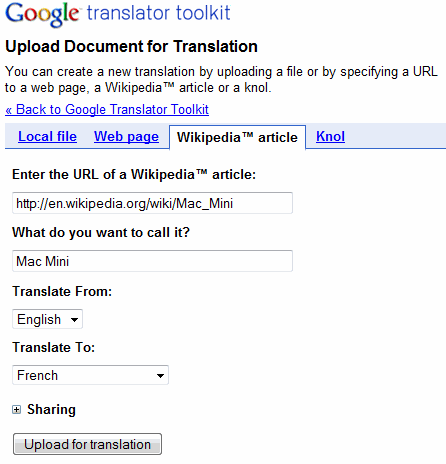
Google Translator Toolkit is a new service that lets you translate documents by editing the translations automatically generated by Google.

Google Translator Toolkit allows human translators to work faster and more accurately, aided by technologies like Google Translate.


photobucket

This service can be used to translate web pages, documents from your computer and so on. Here is how it works: after importing a document, Google generates the translation and displays it next to the original text. Then you can select a sentence from the original doc and Google lets you edit it.

You can select a sentence from the original document and Google lets you edit the translation.

Google Translator Toolkit also uses a database of existing translations and searches within this database to see if that text was already translated:

As you translate new sentences, we automatically search all available translation memories for previous translations similar to your new sentence. If such sentences exist, we rank and then show them to you. Comparing your translation to previous human translations improves consistency and saves you time: you can reuse previous translations or adjust them to create new, more contextually appropriate translations.


[via googlesystem]