Ubuntu / Linux news and application reviews.

Google Chrome Screen Capture Extension By Aviary

google chrome aviary

Aviary, the somewhat well known web-based image capture and editor service released a Google Chrome extension.

You can use this new extension to take a screenshot of the visible portion of a web page and open it in Image Markup or the Image, Color, Effects, or Vector Editor.

Skitch for Mac: Probably The Best Screenshot Taking Application [Mac]

Skitch is a Mac-only screenshot taking application. Think of it as an Mac alternative for the popular Windows screenshots (with annotations) application: FSCapture (my personal favourite).

Basically, any application designed for taking screenshots can do that, and the difference is made by the extra options such as easily highlighting some text, adding arrows and so on, and at this, Skitch is the best I've seen. You can even call it a lightweight image editor because it can be used for that too.

Screen Capture Made Easy with Aviary - Now With Bookmarklet

aviary

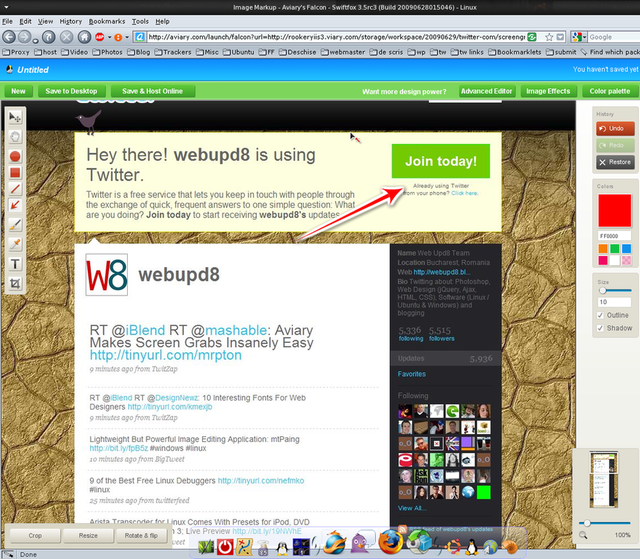
Web-based image editor Aviary has just made it exceptionally easy to grab, edit, and share screen captures.

To get started, all you need to do is type in “aviary.com/” in front of the URL of the page you’d like to screenshot. From there, Aviary opens up its web-based image editor, where you can do things like crop, resize, and adjust the quality of the image, as well as use some of Aviary’s editing tools, like adding text, doodles, or arrows.

For easier use, this also comes with a bookmarklet which if clicked, it creates a screenshot of the page you're currently on and then takes you to the web-based image editor. To use the bookmarklet, simply drag this to your bookmarks toolbar: Screen Capture.

Once you’re satisfied with the image, all you need to do is either save it your desktop or save it online. From there, you can share it on the social sites of your choice, or do as us bloggers do and embed it in your blog posts.

This launch follows the release of Aviary’s Firefox plugin, Talon, which does essentially the same thing, but requires both Firefox and an install.

[via mashable.com]

Jing Screen Capturing and Recording Tool Reaches Version 2.1

The screen capture and screen recording application Jing received an update on Tuesday that adds new video functionality to paying users, and a few other enhancements for all Mac and Windows users.

Two hotkeys now help Jing's capture crosshairs snap to common aspect ratios. Press Ctrl to maintain a 4:3 aspect ratio and Shift for 16:9 widescreen proportions. While locked into a ratio, dragging out the crosshair shows you boundaries for common screen measurements within that ratio that you can easily snap to, like 320?240 or 640?480. This is a nice addition in keeping with Jing's visual, low text-density design.

As usual, premium users get the most impressive addition. Subscribers to the $15-a-year Jing Pro can now record from their Web cam, and toggle between recording from the Web cam and from the screen. For more details and video clips, read the Jing blog here.