Ubuntu / Linux news and application reviews.

Split View Patch Available For Thunar File Manager

Thunar, the default Xfce file manager, doesn't support split view. In a bug report from 2013 which requested this feature, Nick Schermer, one of the Thunar developers, said that Thunar won't support split view because "Thunar is by design meant to be simple and easy to use".

Since Thunar is open source software, Xfce user Román decided to take this issue into his own hands so he implemented the split view / dual pane feature in Thunar and released a patch, so everyone who wants this feature can use his work.

Thunar split view

Install Thunar 1.6.0 With Tabs Support In Xubuntu 12.10 Or 12.04 [Xfce]

Thunar, the default Xfce file manager, has reached version 1.6.0, getting a much-requested feature: tabs.

thunar 1.6.0 tabs


How To Install Dropbox In Xubuntu And Get Thunar Integration (Xfce)

dropbox xubuntu (xfce)

The Ubuntu deb package available for download via the official Dropbox website requires Nautilus. But if you're using Xubuntu (Xfce), you'll probably want to use Dropbox with Thunar, the default file manager, instead of Nautilus.

So here's how to install Dropbox in Xubuntu/Xfce without Nautilus and get some basic Thunar integration (you won't get file emblems, but you'll get options to browse the file on the Dropbox website, get shareable link and view previous revisions, like in the screenshot above).

RabbitVCS: The Perfect TortoiseSVN Alternative For Linux, Now With GIT Integration As A Plus

RabbitVCS screenshot

Sure, you can always work with SVN repositories from the command line but sometimes a graphical SVN client is more convenient - for example you can use it to check which files are not added to the repository yet. And when it comes to graphical SVN clients, I'm sure most of you will agree when I say that RabbitVCS, a "set of graphical tools written to provide simple and straightforward access to the version control systems you use" inspired by the famous TortoiseSVN, is probably the best such tool for Linux.

How To Use Imdb-Thumbnailer [Version 0.8.2, Released]


Imdb-thumbnailer is a program (well, script actually) which sets movie covers fetched from IMDB as thumbnails in Nautilus and Thunar.

Imdb-thumbnailer 0.8.2 has been released today, fixing some issues with the new IMDb design (which made it stopped working).

How To Set IMDB Images As Video Thumbnails In Nautilus And Thunar [Linux]

The following post will explain how to replace the video thumbnails for their IMDB images, like so:


imdb thumbnails movies nautilus thunar


Please note that I wasn't able to make this to work, it seems some package on my computer prevents it from working, but I read it on many blogs and it seems to work for almost everyone, so it will probably also work for you. Update: Actually, I got it to work by cleaning my Nautilus thumbnails cache using BleachBit:

nautilus imdb movies

That being said, here's what you need to do:

1. For this trick, we will use imdb-thumbnail, a package available in both rpm (Fedora, Red Hat, etc) and .deb (Ubuntu, Debian, etc) packages. If you don't use one of these distributions, there is also the tar.bz2 package. Download the package suited for your distro from these links and install it.

Clean Your Linux Desktop Using Compiz and a Lightweight File Manager

This little tutorial will explain how to maintain a clean desktop and at the same time have quick access to your data. It makes use of Compiz widget layer and a lightweight File Manager by creating a folder to store all your Desktop icons/files and make it into a widget where you can access it easily.

The lightweight file manager that I use is Thunar. It will work too if you use Rox-Filer or PCManFM. I avoided using Nautilus as it is the default file manager in Gnome and I don’t want it to mess up my system.

Instructions

1) Create a folder in your Home directory and name it Desktop_Folder.

2) Move all your desktop shortcuts and files to this folder. In the future, this will be the folder where you place all your shortcuts and files that you want to have quick access to.

3) Install Thunar and CompizConfig Settings Manager

sudo apt-get install thunar compizconfig-settings-manager

4) Open up Compiz Config Manager (System-> Preferences->CompizConfig Settings Manager)

5) Go to the Widget Layer section. Click on the Behavior tab.

Enter the following in the Widget Windows field

title=Desktop_Folder - File Manager & class=Thunar

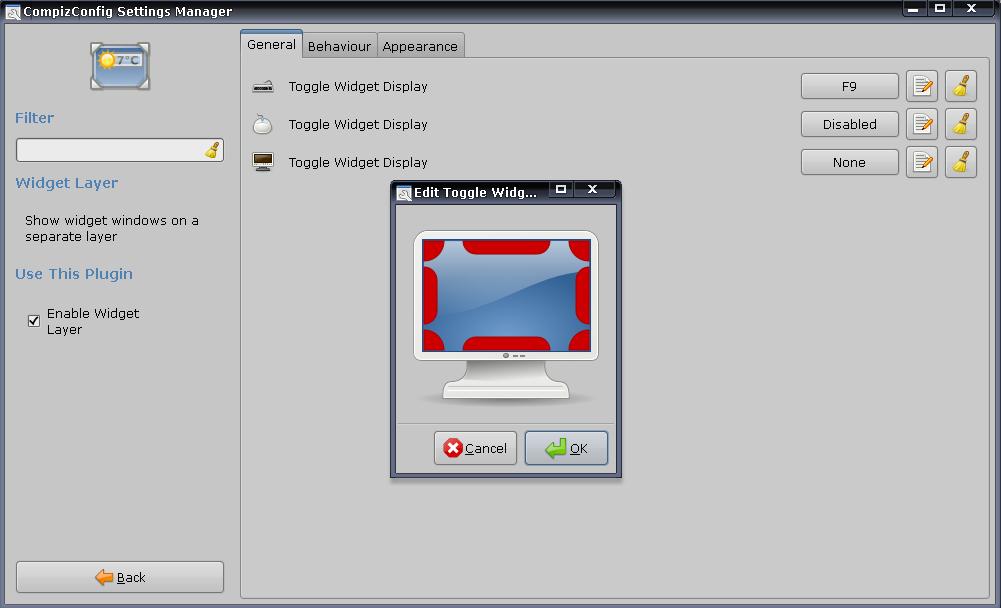
6) Click on the General tab, on the third row of “Toggle Widget Display”, configure the screen corner to activate the widget. For me, I chose the bottom right corner.

photobucket

7) Close Compiz Settings Manager. Go to System->Preferences-> Sessions (or Startup Applications if you are using Jaunty). Create a new entry and enter the following:

Name: Thunar
Command: thunar /home/your_username/Desktop_Folder

That’s it. Whenever you startup your computer, Thunar will load up with the Desktop_Folder directory and hide itself behind the screen (in the widget layer). Whenever you need to access your files, simply point your mouse to the bottom right corner of the screen to display Thunar. There you will find all your shortcuts and files. To make it dissapear, don't close it but instead, point your mouse to the bottom right corner again or just switch to another window and it will close by itself, but don't close it or else it will stop working!

[via maketecheasier.com]