Ubuntu / Linux news and application reviews.

CPU Frequency Scaling Indicator, Fixed For Ubuntu 11.10 Oneiric Ocelot

Indicator CPUFreq Ubuntu 11.10

CPUFreq Indicator is a CPU frequency scaling GNOME panel applet replacement.

A new CPUFreq Indicator version has been uploaded to its PPA for Ubuntu 11.10 Oneiric Ocelot. The new version comes with some very important fixes, such as: the bug that caused CPUFreq Indicator to only manage one core as well as the bug that was causing it not to work at all in Ubuntu 11.04 have been fixed for Ubuntu 11.10. The latest version also comes with a new AppIndicator icon.

Network, Memory And CPU Usage Indicator For Ubuntu: System Load Indicator

System Load Indicator Ubuntu

Yet another much requested AppIndicator is now available for Ubuntu 11.04: an indicator to display the network speed as well as CPU, Memory usage and more called System Load Indicator (or "Indicator Multiload").

This is a port of the original System Monitor GNOME Panel applet to appindicators and Vala. This means it has most of the features the System Monitor Applet had: display processor, memory, network, swap space, load or hard disk activity, change the colors and so on using an Ubuntu indicator..

CPU Frequency Scaling Indicator For Ubuntu: Indicator Cpufreq [AppIndicator]

Indicator CPUfreq

Yet another very useful Gnome applet got an Ubuntu indicator applet (AppIndicator): CPU frequency scaling applet. By using an appindicator, this tiny application will be able to run in Ubuntu 11.04 without using a Gnome panel (the Unity panel doesn't support the regular Gnome applets).

For now it still depends on gnome-applets, but this might change in the future.


It's nice to see that most applets are getting an indicator and will thus work on future Ubuntu versions, but it's a shame for all the good applets that will be lost in this transition. And it's not just Ubuntu - Gnome Shell won't support all these applets either.


Install Indicator Cpufreq in Ubuntu

How To Disable Disable Cpu Frequency Scaling In Ubuntu Jaunty And Karmic

Dynamic frequency scaling (also known as CPU throttling) is a technique in computer architecture where a processor is run at a less-than-maximum frequency in order to conserve power. Dynamic frequency scaling is commonly used in laptops and other mobile devices, where energy comes from a battery and thus is limited. It is also used in quiet computing settings and to decrease energy and cooling costs for lightly loaded machines.

If you have a desktop PC, you may want to turn it off. The old sudo dpkg-reconfigure gnome-applets method does not work anymore, so here's what you need to do to disable CPU frequency scaling so that you CPU always runs at full capacity:

Limit CPU Usage By Process [Linux]


cpulimit is a simple program that attempts to limit the cpu usage of a process (expressed in percentage, not in cpu time). This is useful to control batch jobs, when you don't want them to eat too much cpu. It does not act on the nice value or other scheduling priority stuff, but on the real cpu usage. Also, it is able to adapt itself to the overall system load, dynamically and quickly.

To use cpulimit, first download it then extract the archive, use the terminal to navigate to it's folder and:
make
cp cpulimit /usr/local/sbin/
rm -rf cpulimit*
Ubuntu users: all you have to do is open a terminal and type this:
sudo apt-get install cpulimit

cpulimit examples:

Limit the process 'bigloop' by executable name to 40% CPU:
cpulimit -e bigloop -l 40
cpulimit -e /usr/local/bin/bigloop -l 40
So for Firefox, you would have to:
cpulimit -e firefox -l 40
Limit a process by PID to 55% CPU:
cpulimit -p 2960 -l 55
Launch a process by command line and limit it to 40% (in development version only!):
cpulimit -l 40 /etc/rc.d/rc.boinc start

To find out the pid of an application, simply type this in a terminal:

-for all applications running:
ps -e
-for a specific application (for example Firefox):
pidof firefox
(you may also want to check out our list of 20 great Linux terminal commands)


Notes

If your machine has one processor you can limit the percentage from 0% to 100%, which means that if you set for example 50%, your process cannot use more than 500 ms of cpu time for each second. But if your machine has four processors, percentage may vary from 0% to 400%, so setting the limit to 200% means to use no more than half of the available power. In any case, the percentage is the same of what you see when you run top.

cpulimit should run at least with the same user running the controlled process. But it is much better if you run cpulimit as root, in order to have a higher priority and a more precise control.
Now cpulimit does limit also the children of the specified process. The code is still experimental, so let me know how it is.

[via ciberciti]

Optimize Your Computer's CPU with PRocess Lasso

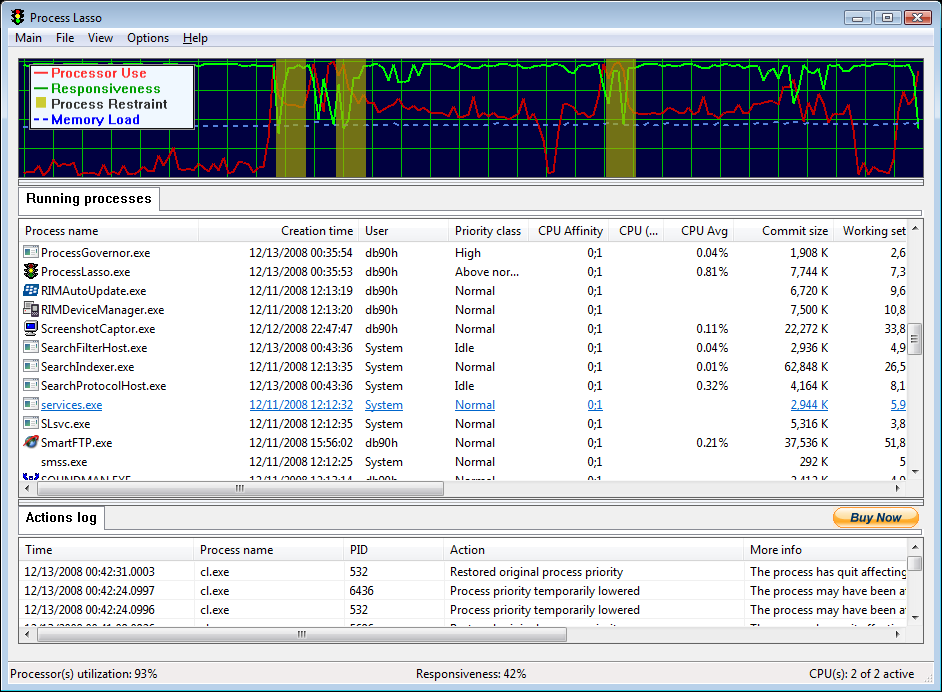
process lasswo

RProcess Lasso is a freeware Windows utility that, amongst other things, will improve your PC's responsiveness and stability. Windows, by design, allows programs to monopolize your CPU without restraint -- leading to freezes and hangs. Process Lasso's ProBalance technology intelligently adjusts the priority of running programs so that badly behaved or overly active processes won't interfere with your ability to use the computer!

Moreover, the graphical interface of the "PRocess Lasso" presents a display and a manual manipulation of running processes. This application is not intended to replace the Task Manager, but has capacity to do so due to its main functions.

Although you can modify the program's settings, is not recommended to do so, because these settings are chosen to obtain an optimal performance.

Process Lasso Features:

# ProBalance dynamic priority optimization
# Default process priorities
# Default process CPU affinities
# Foreground boosting
# Limit allowed program instances
# Disallow programs from running
# Log all programs run
# System responsiveness graph
# Stand-alone core engine
# Available in x86-32 and x86-64 builds
# Highly optimal, extremely low RAM and CPU use

Core Engine Features
* Stand-alone capability
* Only 1-3 MB of RAM used in typical cases
* ProBalance automatically manages process priorities to improve system responsiveness and prevent freezes
* Configure processes to always start at a desired priority and/or CPU affinity
* Auto-terminate undesirable processes
* Limit the number of instances a process can have
* Fine-tune NT scheduler settings with TweakScheduler
* Fine-tune Vista Multimedia Scheduler with VistaMMSC

Toshiba TG01, the first 1 GHz CPU smartphone

Toshiba TG01The NEW Toshiba TG01 is a TFT touchscreen (touch resistant technology), 256K colors (65K effective) smartphone with a Qualcomm Snapdragon QSD2850 CPU at 1 GHz, based on Windows Mobile 6.1 operating system!

It has a 3.15 MP camera (2048x1536 pixels resolution) with autofocus, a huge screen (480 x 800 pixels resolution, 4.1 inches), built-in GPS receiver with A-GPS function and if you want to listen to your favourite music or watch a movie when you are on te go, you can do that easily cause this phone supports MP3 and MPEG4 formats.

In adition to the 1GHZ CPU comes the 256MB RAM memory and 512MB ROM memory and if you think that it's not quite enough for your needs, you can buy at any moment a microSD card cause this phone supports up to 16GB of expandable storage.

It also has very good internet connection capabilities (GPRS, HSCSD, EDGE, HSDPA and even HSUPA), accelerometer sensor for auto-rotate, 3D user interface and...shake control.

For syncing or sharing stuff with your friends, you have Bluetooth 2.0 with A2DP and microUSB slot.

This phone is expected on the market on the second quarter of this year.


Image source: gsmarena.com