Ubuntu / Linux news and application reviews.

Get A Minimalistic, Wingpanel-Like XFCE4 Setup [Xubuntu]

WebUpd8 reader Erlan has sent us a tip on getting more vertical screen space in Xubuntu. Using his tweak you can get the XFCE panel in Ubuntu 11.04 to overlap the unused part of the maximized applications titlebar - more or less like Wingpanel.


Here are a couple of screenshots:

XFCE minimal Xubuntu


Xubuntu 11.04 wingpanel


Placing window controls on the right is not mandatory. You can place the panel on the right and window controls on the left if you want. This is similar to getting the Gnome Panel to behave like "wingpanel", but for XFCE.

Font Manager - Easily Manage Fonts in Linux [Gnome, KDE, XFCE and Enlightenment]

font manager linux

Although designed with the GNOME desktop environment in mind, Font Manager (for Linux) should work well with most major desktop environments such as XFCE, Enlightenment, and even KDE, as long as PyGTK is available.

Font Manager currently allows the user to:

* Preview installed fonts
* Easily activate and de-activate installed fonts
* Specify different directories to search for fonts
* Group fonts into "Collections", and easily activate or de-activate groups of fonts
* Export "Collections" to an archive for easy backup, sharing, etc.
* Provides quick access to the users font folder so that font installation or removal can be done by drag and drop
* It can also display basic information about the selected font, detailed information if gnome-font-viewer is available


In the future Font Manager intends to allow the user to:

* Export "Collections" to a PDF "fontbook"
* Compare fonts

Download: Fedora 11 (.rpm) | Ubuntu 9.04, Linux Mint 7 .(deb package) | More info

You may also want to read about installing hundreds of free fonts in Ubuntu via repositories

Install XFCE4 Screenshooter 1.6.0 in Ubuntu Jaunty (From a .deb File)

We already presented the best screenshot application for Linux (for me at least): XFCE4 Screenshooter 1.6.0 (the article also explains how to make it the default screenshot tool in Ubuntu). But At the time I wrote the post, there was no .deb package available for Ubuntu so you had to compile it. Now there is such a package, so there is no need to compile it, you just have to download it from this location (select i686 or x64 according to your Ubuntu version).

To see Screenshooter in action, I've also created a small video you can watch:


Please note that to be able to upload images directly to Zimagez, you'll need an account (free).

The New Xfce4 Screenshooter 1.6.0 Rocks

xfce4 screenshooter

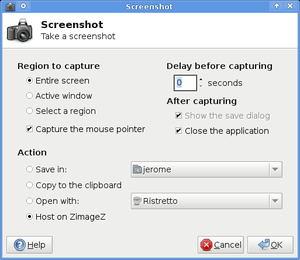
Version 1.6.0 of Xfce4 Screenshooter has no reason to fear Gnome or KDE default screenshot apps. With Screenshooter you can take screenshots of current window, a region you select or the whole screen.

The option to choose using the mouse pointer to hide or to display aspects over the graphic user interface is a new one.

When the user deselects the option „Close the application“, the tool remains open after the capture of the screenshot. This is a considerable advantage over Gnome’s screenshot tool, which closes automatically after every screen frame capture. With Gnome, the user is forced to open the application every single time he or she wants to take a new screenshot.

There are also options to save the images to a certain folder, open the screenshots with an image editor, create timed screenshots or upload it to ZimageZ. The user has to create an account with ZimageZ to take advantage of this capability.

You can download Xfce4 Screenshooter 1.6.0 source from here.

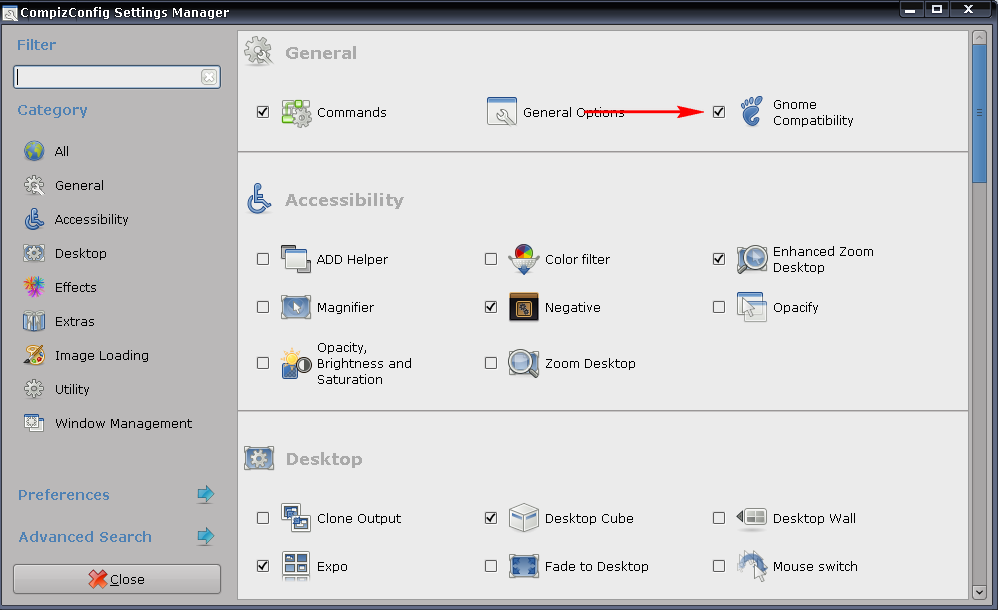
If you wish to replace Gnome Screenshot with Screenshooter, after installing it, go to System > Preferences > CompizConfig Settings Manager and make sure "Gnome Compatibility" is checked, then click "Gnome Compatibility":

compiz gnome compatibility

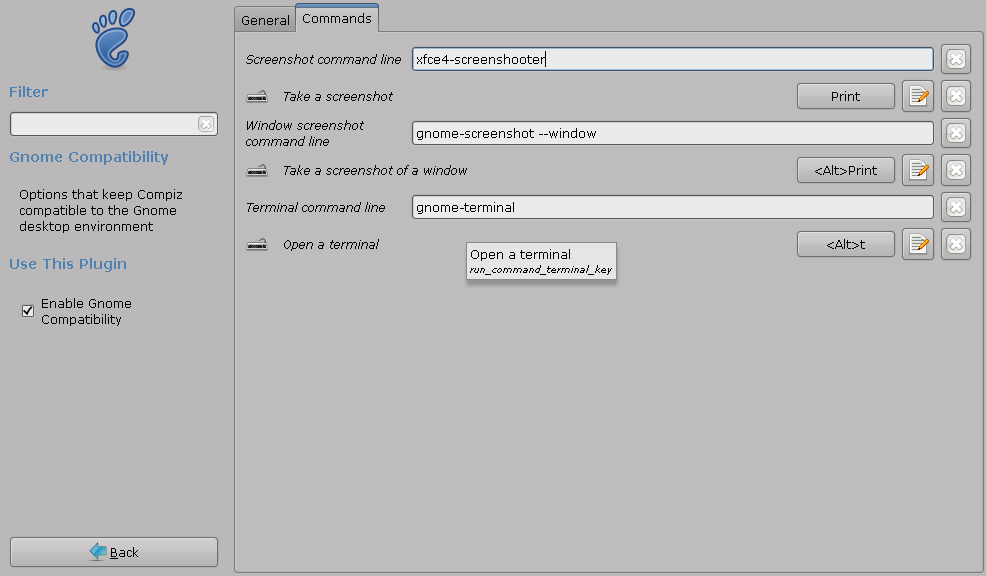
And then on the "Commands" tab, under "Screenshot command line", enter:
xfce4-screenshooter
You can also change "Window screenshot command line":