Ubuntu / Linux news and application reviews.

25% of All Twitter Users Have LISTS

Image and video hosting by TinyPic


The waiting is over for some Twitter addicts. Twitter employee Nick Kallen has tweeted today, a month after the official announcement has been made, that "25% of all users have lists". Thanks to TechCrunch for pointing it out and for the screenshot!

So yes, some lucky people can now curate lists of Twitter accounts, thus being able to follow only people who are truly interesting for them. We haven't received one yet.

5 Stylish Google Chrome Themes

How to install Google Chrome themes:

* Extract the file in an accessible place and copy the file default.dll
* Go to the folder of Google Chrome install – “C:\Documents and Settings\[user-name]\Local Settings\Application Data\Google\Chrome\Application\[version-number]\Themes\” and
* Back up the original file default.dll files
* Paste the file into the folder themes and restart the browser.

1. Graphite Theme:

Graphite chrome Theme

2. Lipse Theme:

Lipse Theme chrome

3. Sonetto Theme:

Sonetto chrome Theme

4. Royale Vista Blue:

Royale Vista Blue chrome theme

5. Zombre Dark Theme:

Zombre Dark chrome Theme


[via nirmaltv.com]

10 Firefox 3.5 Compatible Themes

16 "top"-Like Linux Apps / Commands

You already know the Linux command called "top", and also iotop and iftop (from previous Web Upd8 posts), but I bet you don't know some of the other 14 top-like Linux apps:

htop - Undoubtedly the most famous of the top-like tools. It implements some extra options to the "top" command, like colors, ability to scroll horizontally and vertically, and a better interaction with the processes listed.

itop - Monitors the system breaks.

atop - Monitor for system resources. Displays swap, network, disk, cpu, activity, among other processes.

sntop - Pings a list of hosts and indicates whether they are active or inactive. Must be configured in /etc/sntoprc.

mtop, mytop - tools that monitor the performance and queries of a mysql database.

apachetop - Displays information about Apache, such as requests per second, bytes per second and the most popular URLs.

ptop - Similar to mtop, but specific to postgres.

dnstop - Displays information about the network's DNS traffic.

virt-top - Displays details of virtualised systems: cpu, memory, uptime. You can monitor any system based on libvirt virtualisation such as Xen and KVM.

iptstate - Displays information about connections which pass through your firewall / gateway. It is basically a netstat that monitors the connections handled by iptables. Depends on module CONNTRACK.

ntop, jnettop - Displays information on the network bandwidth, each with its peculiarity - From the same class as previously mentioned iftop.

nethogs - network information, but instead of displaying the traffic by protocol, nethogs shows the bandwidth usage by process. Very interesting.

You can find all of these in Ubuntu 9.04, by searching using Synaptic Package Manager.


25 Great-Looking Compiz Emerald Themes

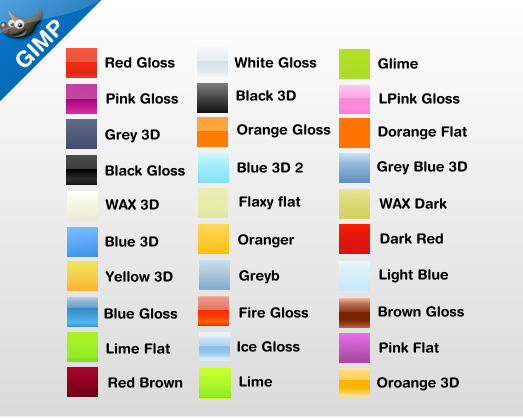
30 Web 2.0 Gimp Gradients

gimp gradients

If you use Gimp intensively, you may have noticed that the default gradients are very few and this is why you may want to download 30 new, web 2.0 gradients for Gimp. With these pre-made gradients you can easily make cool web 2.0 headers, backgrounds, button, and almost any web based designs will always need some nice gradient affect to it and instead of creating them using multiple layers all you need is to use the Gradient fill tool to apply the effects.

To install these gradients (layer styles) in Ubuntu, download the files (see download link at the end of the post), then go to .gimp-2.x (if you have the latest version, it's .gimp-2.6) directory in your home folder) - which is a hidden folder so press Ctrl + H to see the hidden files). Then go to the gradients folder and place the downloaded ggr files there. If you cannot find that folder, paste this in the Nautilus Location:
~/.gimp-2.6/gradients

Under Windows, the ggr files must be placed in: C:\Documents and Settings\<your_username>\.gimp-2.6\gradients.

Download the 30 web 2.0 Gimp gradients

Via: NeoTux | Credits: Gimp-Tutorials

10 Useful Linux / Unix Commands

1. Show installed but unused linux headers, image, or modules:
dpkg -l 'linux-*' | sed '/^ii/!d;/'"$(uname -r | sed "s/\(.*\)-\([^0-9]\+\)/\1/")"'/d;s/^[^ ]* [^ ]* \([^ ]*\).*/\1/;/[0-9]/!d'

If you would also like to purge them too:
dpkg -l 'linux-*' | sed '/^ii/!d;/'"$(uname -r | sed "s/\(.*\)-\([^0-9]\+\)/\1/")"'/d;s/^[^ ]* [^ ]* \([^ ]*\).*/\1/;/[0-9]/!d' | xargs sudo apt-get -y purge


2. Rip audio from a video file:
mplayer -ao pcm -vo null -vc dummy -dumpaudio -dumpfile <output-file> <input-file>


You can also extract the sound from a flv and make an mp3 with:
ffmpeg -i input.flv -f mp3 -vn -acodec copy ouput.mp3


3. Stream YouTube URL directly to mplayer:
mplayer -fs $(echo "http://youtube.com/get_video.php?$(curl -s $youtube_url | sed -n "/watch_fullscreen/s;.*\(video_id.\+\)&title.*;\1;p")")

(Replace $youtube_url with any youtube URL)

4. Download all images from a site:
wget -r -l1 --no-parent -nH -nd -P/tmp -A".gif,.jpg" http://example.com/images


5. Create a nifty overview of the hardware in your computer:
lshw -html > hardware.html

(then open hardware.html in a web browser).

6. Cut a part of a video:
ffmpeg -vcodec copy -acodec copy -i orginalfile -ss 00:01:30 -t 0:0:20 newfile

Where 00:01:30 is the start time (replace with your own) and 0:0:20 is the length of the video you want to cut out (replace with the length you desire).

7. Purge configuration files of removed packages on debian based systems:
sudo aptitude purge `dpkg --get-selections | grep deinstall | awk '{print $1}'`


8. Play high-res video files on a slow processor:
mplayer -framedrop -vfm ffmpeg -lavdopts lowres=1:fast:skiploopfilter=all


9. Convert images to a multi-page pdf:
convert -adjoin -page A4 *.jpeg multipage.pdf


10. Find the 20 biggest directories on the current filesystem:
du -xk | sort -n | tail -20

6 Firefox Addons to See Usage Stats

Net Usage Item - Displays a progress bar of your Internet usage (grabbed from your ISP) on your Firefox Toolbar.

Usage Counter - Tells you how much time you have spent using Firefox and browsing sites.

StatusbarEx - Show some useful information on status bar of Firefox, such as the memory usage of system & Firefox itself, network speed, system power status, etc.

Minimeter - Monitor your provider’s upload/download usage meter.

DataFox - Check your BSNL DataOne and MTNL Triband bandwidth utilization in Firefox at the click of a button. A color coded progress bar and bandwidth usage tracking helps you stay within your monthly cap and efficiently utilize your bandwidth.

Cache Status - Easy cache status & management from the status bar.


[via firefoxfacts.com]