Ubuntu / Linux news and application reviews.

Rescue Lost Partitions Data With GParted 0.8

GParted 0.8

GParted is a partition manager you can use to resize, copy or move partition without losing your data.

The latest GParted 0.8, released a couple of days ago, adds an option to rescue data from lost partitions: "This new feature uses the gpart command to guess the partition table. Discovered file systems can be mounted read-only so that you can copy data to other media". Bugs fixed in the new version include: fix paste destination partition smaller than source, prevent visual disk display area from disappearing and fix minor cylinder alignment rounding error. A complete changelog can be found HERE.

How to Install Palimpsest Disk Utility From Ubuntu Karmic Koala (9.10) in Ubuntu Jaunty

Palimpsest Disk Utility

If you read our "what's new in Ubuntu 9.10 Karmic Koala" post, you must know that a new hard disk tool is now available by default in Ubuntu 9.10: Palimpsest Disk Utility, which was created by Red Hat and is a S.M.A.R.T. testing/monitoring tool, showing you the temperature and uptime of the driver, and also a partition management tool that allows you to mark as bootable, delete or label a hard disk partition. Basically, Palimpsest is a graphical interface for all disc-related tasks, from partitioning and file system creation to encryption, raid and lvm.

If you want to install Palimpsest Disk Utility in Ubuntu Jaunty (9.04), all you have to do is download and install the following packages (.deb):


After installing the above packages, you need to restart your computer.

Then, you will find the newly installed tool under Applications > System Tools > Palimpsest Disk Utility

Find Out Which Applications Read / Write the Most on Your Hard Disk with iotop

iotop

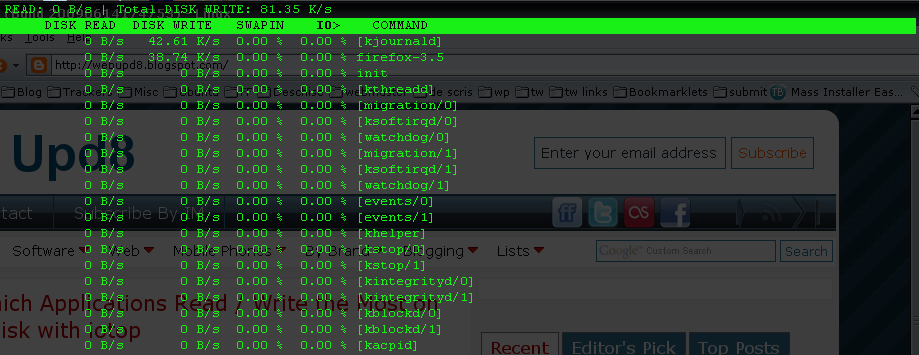
If you've ever wondered what is thrashing your hard drive but can't figure out which process it is, you can use the iotop utility to help.

To install iotop in Ubuntu:
sudo apt-get install iotop
The iotop utility works the same as the top command that shows system process activity. Just open up a terminal window and type iotop to see a display of all processes and threads, and the amount of disk activity going on.

You can use the left and right arrow keys to change the sorting, and the R key to reverse the sort—but the really useful option is the O key, which changes the display to only show the threads with I/O activity.

[via lifehacker]