
How to Change The Look of the Time and Date in Gnome
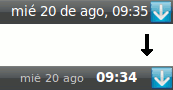
To do this we only need to change two lines in the Configuration Editor. Here's how to do it:
1. Press Alt + F2 and enter:
2. In gconf editor, navigate to apps > panel > applets > clock_screen > prefs
1. Press Alt + F2 and enter:
gconf-editor2. In gconf editor, navigate to apps > panel > applets > clock_screen > prefs
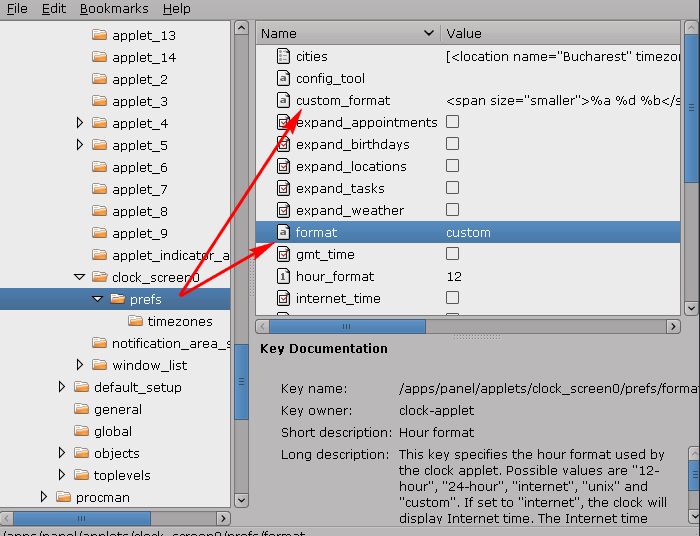
3. In the custom_format field, write:
4. In the "Format" field (still in apps > panel > applets > clock_screen > prefs), write: custom
5. Close the configuration editor (gconf-editor) and see the changes on our desktop.
Of course, you can play with the code above and change it anyway you want.
To reset this, re-open the Configuration Editor, leave the "custom_format" field blank and in the "format" field, enter 12-hour or 24-hour.
[via tuxapuntes]
<span size="smaller" color="#c8c8c8">%a %d %b </span> <b>%H:%M</b>4. In the "Format" field (still in apps > panel > applets > clock_screen > prefs), write: custom
5. Close the configuration editor (gconf-editor) and see the changes on our desktop.
Of course, you can play with the code above and change it anyway you want.
To reset this, re-open the Configuration Editor, leave the "custom_format" field blank and in the "format" field, enter 12-hour or 24-hour.
[via tuxapuntes]

